
How to Restore Magento Prices After a Bulk Edit
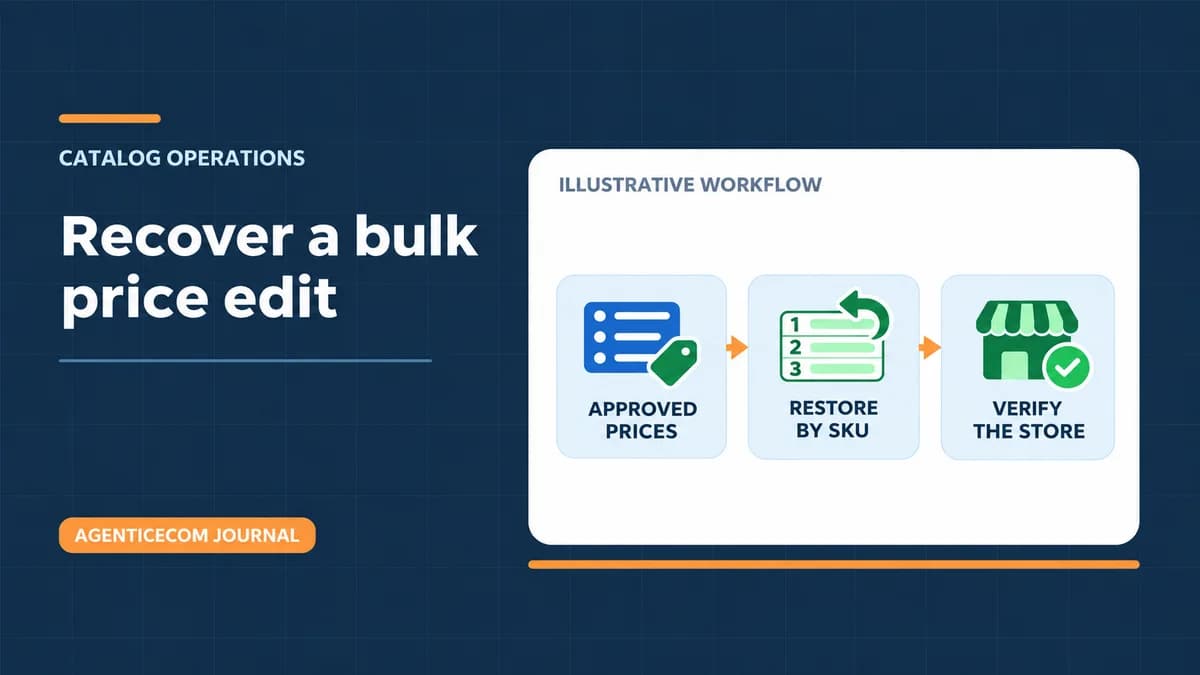
Restore the approved base price for each affected SKU, then verify the saved prices and the amounts shoppers see. Start with the approved price list from before the edit. If Magento already holds the correct values, trace the difference through the storefront or feed before changing the catalog again.
Find the affected SKUs and the approved prices
- Record the affected SKUs and the change time. If a scheduled import, integration, or bulk action is still writing incorrect prices, pause that specific job while you investigate.
- Keep an export of the current values as evidence of what changed. Reconcile it against your approved historical price list or a recoverable pre-change backup. Confirm that the old price still applies today.
- Check Catalog Price Scope and identify the website and base currency for each value. With website pricing, a repair for one site may differ from the same SKU’s price on another. See Adobe’s guide to price scope.
Restore the affected values
For a few SKUs, open each product in Catalog → Products, select the correct scope, correct the regular price, and reopen the saved record. Where several products need different prices, prepare a Products CSV using Add/Update. Match every SKU to an existing product, retain the fields required for the intended scope, and exclude unrelated columns. Start with a small batch in staging. Use Check Data and make sure the save changes only the intended values.
With Add/Update, an unknown SKU can create a product and a blank cell can overwrite a value. Review the behavior of your file against Adobe’s product import instructions. Keep the original source and record exactly which file was used.
A worked example with an unchanged control
Suppose a shared edit set two simple products to 19.99. All three illustrative values below are in the website’s base currency. Restore the two affected records and use the third one to verify that the repair stayed within the intended selection.
| SKU | Approved price | After edit | Expected after repair |
|---|---|---|---|
| VALVE-01 | 24.50 | 19.99 | 24.50 |
| VALVE-02 | 31.00 | 19.99 | 31.00 |
| SEAL-01 | 12.00 | 12.00 | 12.00 |
The repair uses two different approved values. Bulk Product Operations can set a single fixed price on selected rows. Use the method that fits the data you need to restore. The Magento bulk editing guide compares the native tools, CSV, and the module’s grid actions.
If this exposed a recurring catalog data problem, request a Magento catalog audit. Bring a few affected SKUs and the approved source for the values you need to correct.
Verify the price the shopper sees
Compare each repaired SKU and the control in Admin, on the product page, and in a fresh cart for the intended website, customer group, and display currency. If Admin is correct but the shopper price differs, check Special Price, catalog price rules, group pricing, tax, and exchange rates. In a headless store, check when the new value reached the storefront as well as the Magento cart. Trace a currency change separately if the symptom is a different currency during checkout.
Inspect the next feed output before resuming any paused publication. Record the period and SKUs affected so your order team can review orders placed during the incident under its normal process. For future batch edits, keep the approved per-SKU values, test a small selection, and check the saved result before widening the change. See the Bulk Product Operations user guide for setup and the scope of its grid actions.