
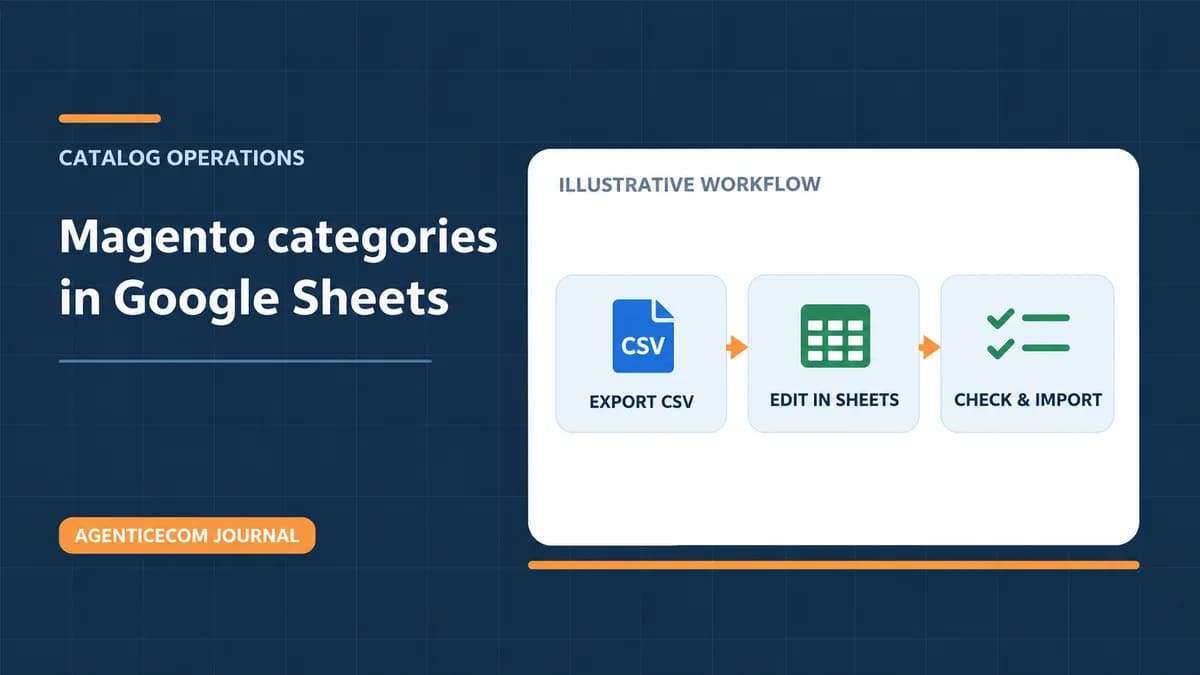
How to Edit Magento Categories in Google Sheets
Export your category records from Magento, edit a copy in Google Sheets, and download a fresh CSV to import. Keep the original export so you can compare identifiers, store scope, and the fields your team meant to change. Use Category Manager when you need a batch editor for category names, descriptions, and menu settings. For a handful of changes, open Catalog → Categories and edit the categories directly.
Start with the right CSV
Open System → Data Transfer → Category Import & Export and choose Export CSV. Save that file before opening it in Sheets. The category export includes the existing IDs, the parent IDs, and the default-scope values for the categories it exports. The exported header is your template. Follow the Category Manager setup and CSV field reference if the import screen is unavailable or your file needs store-view overrides.
When the job is to move products out of an old category, prepare a product CSV instead. Use the product-category assignment guide if the file must define the final categories for each SKU.
Bring the export into Google Sheets
- In a new spreadsheet, use File → Import and upload the CSV. Choose a comma separator if automatic detection splits the file incorrectly. Turn off automatic conversion of text to numbers, dates, and formulas if that option appears. A URL key such as
4-12needs to survive as text. - Keep one tab with the original data and edit a copy. Keep notes, approvals, and spreadsheet calculations in a separate tab so they stay out of the import. Preserve the original header and column order.
- For an existing category, keep
category_idand its currentparent_id. Clear the category ID only when you intend to create a new record. Use Magento Admin for moving an existing category beneath a different parent. - Check
store_idbefore changing names, descriptions, or metadata. A row scoped to0holds the default values. A translation or override uses the intended store-view ID. Default values and saved overrides can produce different storefront results.
A reviewable change to one category
Suppose you want a category label to read Industrial Shelving while its existing URL stays the same. These are example values. Retain every other exported column unless it is part of the approved change.
| Field | Exported value | Import value |
|---|---|---|
category_id | 42 | 42 |
parent_id | 17 | 17 |
store_id | 0 | 0 |
name | Warehouse Shelving | Industrial Shelving |
url_key | warehouse-shelving | warehouse-shelving |
Include an unchanged category outside the sample as a control. In staging, confirm the edited record still has the same ID and parent. Visit the existing URL and check the changed label in the intended storefront and any store view with an override. Review redirects separately if you deliberately change a URL key.
If you have supplier files and need to define the product catalog itself, scope a Magento catalog build around a representative set of products, attributes, and variants.
Verify the downloaded CSV before import
- Open the finished import tab and use File → Download → Comma-separated values (.csv). Verify you downloaded the tab with the Magento header.
- Reopen the export and download with a CSV-aware tool. Compare the header, row count, and category, parent, and store IDs. Spot-check text that contains commas, quotation marks, or line breaks. If someone sorted one column by itself, restore the original file and redo the edits on whole rows.
- Import a small staging sample using Import CSV. A validation error names the row to check. Verify the changed category and the untouched control in Admin and on the storefront before importing a larger batch.
Google Sheets is the editing step. Category Manager performs the CSV import in Magento. For more on what this file can create or change, read the Magento category CSV guide. See Google’s guide to importing data in Sheets for the spreadsheet side.