
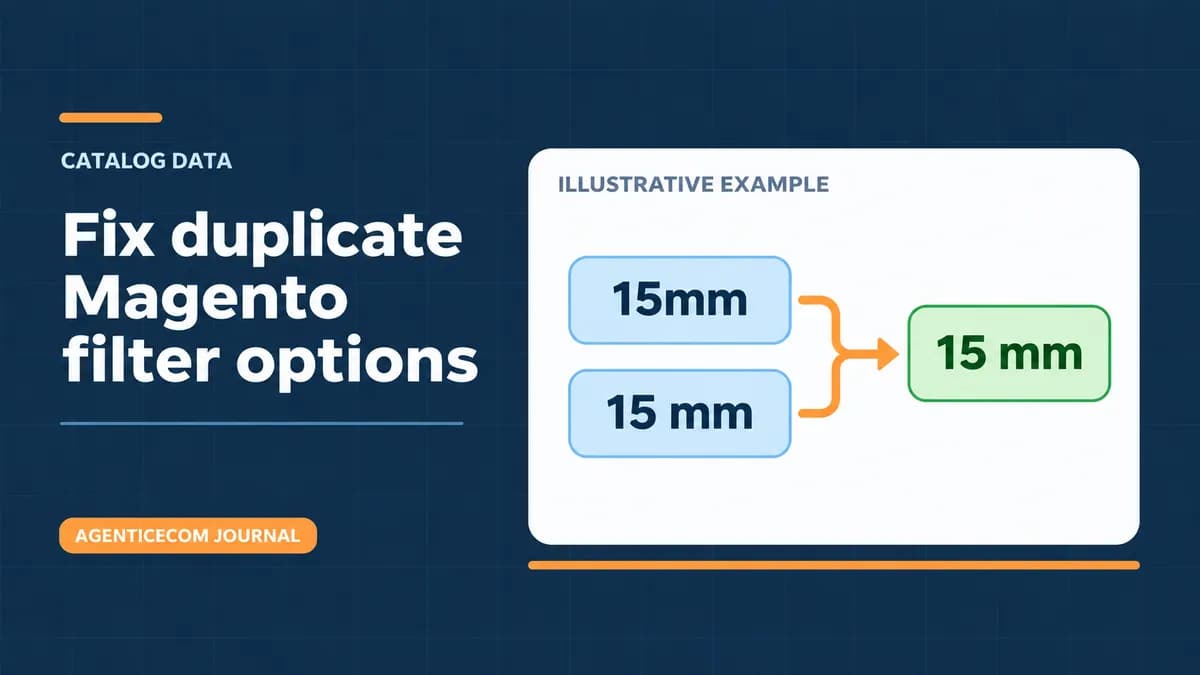
How to Fix Duplicate Magento Filter Options
If Magento shows both 15mm and 15 mm in a category filter, first find out whether they are separate options or inconsistent labels for the same option. A label correction changes what shoppers read. Combining two options means deciding which one to keep and moving the affected product assignments to it. Test both paths on staging before changing a live catalog.
Find the attribute behind the filter
Open the affected category in the exact store view where the problem appears. Check the active storefront and search integration. Magento’s native layered navigation uses the product attribute and its filter configuration. A headless storefront or a separate search service may present filter labels from its own index.
In Magento Admin, open Stores → Attributes → Product and find the attribute. For a dropdown or multiselect, compare the choices in Manage Options, including the Admin value and any store-view labels. Also open representative product records and inspect the assigned values. Two similar labels can represent different option records. They may also indicate different specifications, so confirm the meaning using an approved source before combining anything.
Choose a label correction or a product reassignment
- One option, wrong display text. Use the existing option’s label fields to correct the affected store view, preserving deliberate translations. Reopen that view and check the same products in the filter. Adobe’s product attribute guide shows the Admin and store-view label fields.
- Two distinct options with the same meaning. Pick the approved option to keep. Record the old and intended assignments by SKU. Reassign a small set in staging, either on the product records or through an import you have verified for that product type and store scope. When the attribute drives configurable choices, also check each affected child, its parent and the actual purchase selection before any wider change.
- A mismatch between Magento and the storefront. Check the storefront’s search or catalog synchronization, including its cache and index, before editing product data again. Compare the actual Admin option and the value returned on the affected public route.
Worked example with an unchanged control
In this illustrative staging example, two size options mean the same thing. One product already uses the approved label, one needs reassignment, and a third is a control from another size.
| Test SKU | Before | Expected after |
|---|---|---|
| ITEM-A | 15mm | 15 mm |
| ITEM-B | 15 mm | 15 mm |
| ITEM-C | 22 mm | 22 mm |
Reopen all three SKUs, then select the 15 mm filter and check that it returns the two intended products. Check 22 mm, another relevant store view, and any related product variants. Compare storefront results after the normal indexing or synchronization has run. Preserve the pre-change assignments and check unrelated product families before deciding whether the old option can be retired.
Keep the definition and the product values separate
Use Product Attribute Import Export to document user-defined attribute definitions and options. Its definition import can add a new option to an existing attribute. Reassigning the products that use a different option is separate work. See the attribute CSV guide for the setup steps and import limits.
If the problem spans many product families, request a no-obligation Magento catalog audit. Start with a few affected SKUs, the filter or store view where they appear, and the source you use to confirm approved values.